Product
Inside the panel — with real screenshots
The screenshots below were taken from the panel that runs a real fleet of 431 screens; nothing is staged. This is the interface you get when you sign up.
01 · Scene editor
Build in the panel exactly what shows on screen
Layered scene editor: drag and drop images, video, text and live price fields, rotate, align. Work in a draft, publish when ready — live screens don't change until you publish.
Try it yourself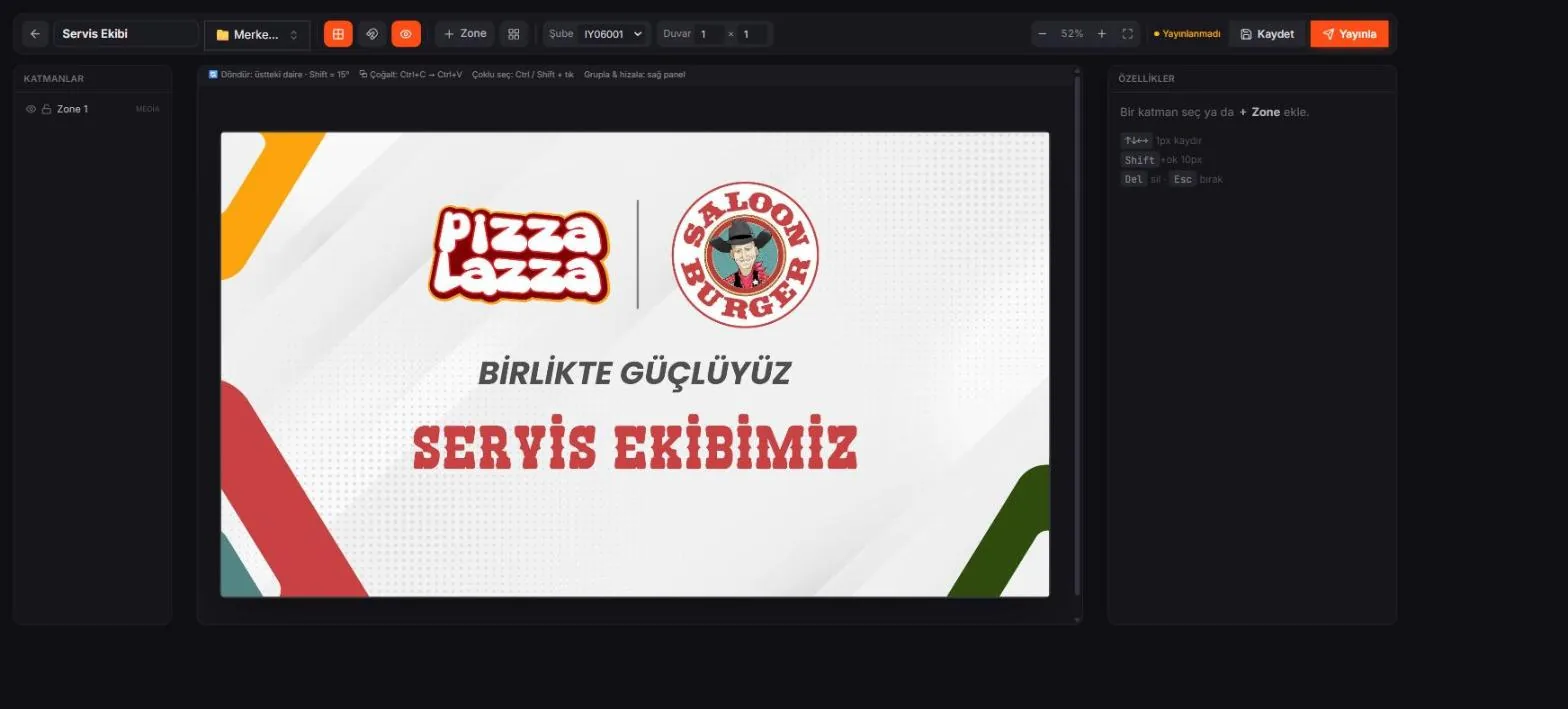
02 · Groups & video wall
Side-by-side screens play as one picture
Group screens and publish them as a mirror, a video wall or a wall scene. Set up different content flows through the day with the schedule; the whole group plays in lockstep on the shared server clock.
Try it yourself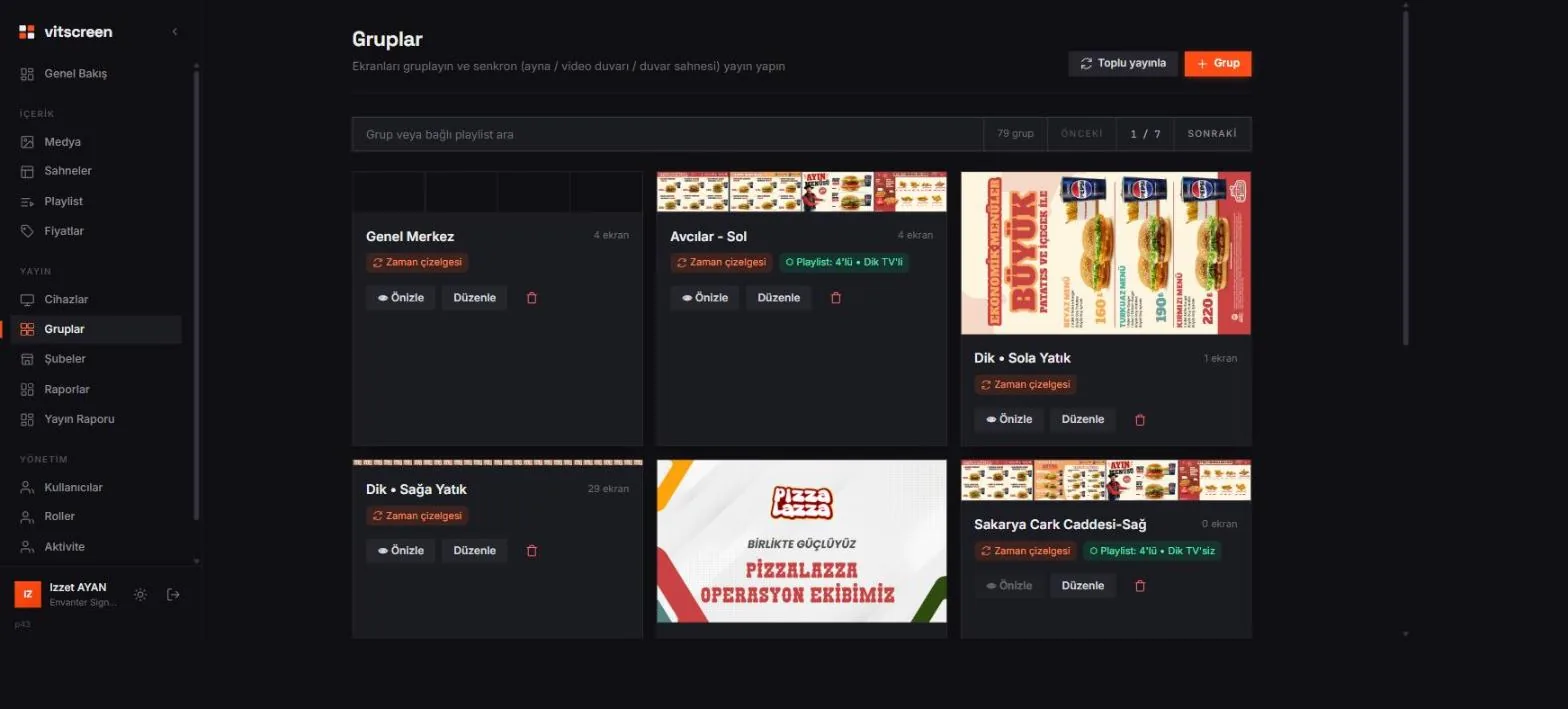
03 · Store-based pricing
Change one price and the right stores update instantly
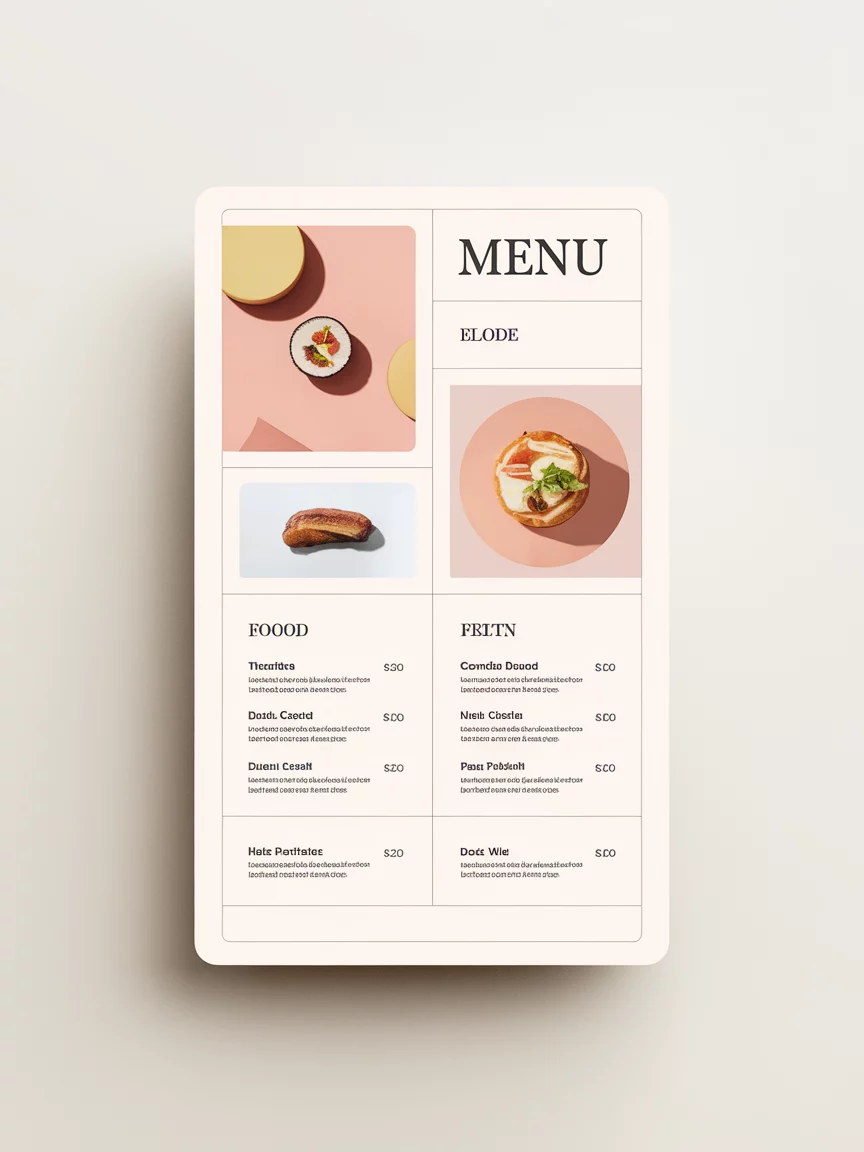
Every store has its own price list; the price field on the menu board matches by product code. Instead of preparing artwork for hundreds of stores one by one, change the price in the table — the relevant screens reflect it within seconds.
Try it yourself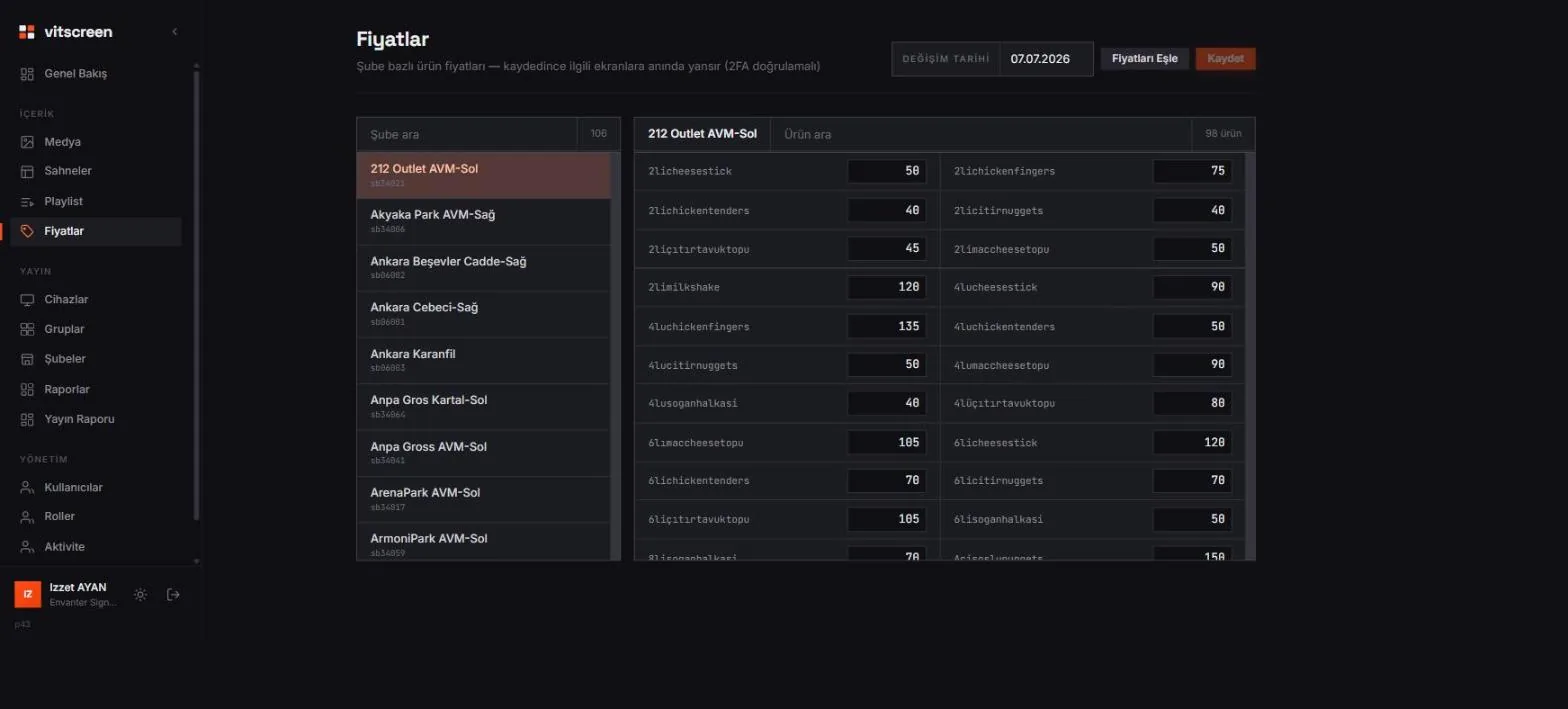
04 · Play report
Which content played, in which store, for how many minutes
Play time is calculated minute by minute on the server, without waiting for reports from devices. Break it down by content, store, screen, day and hour; download as CSV. The foundation for ad and campaign reporting.
Try it yourself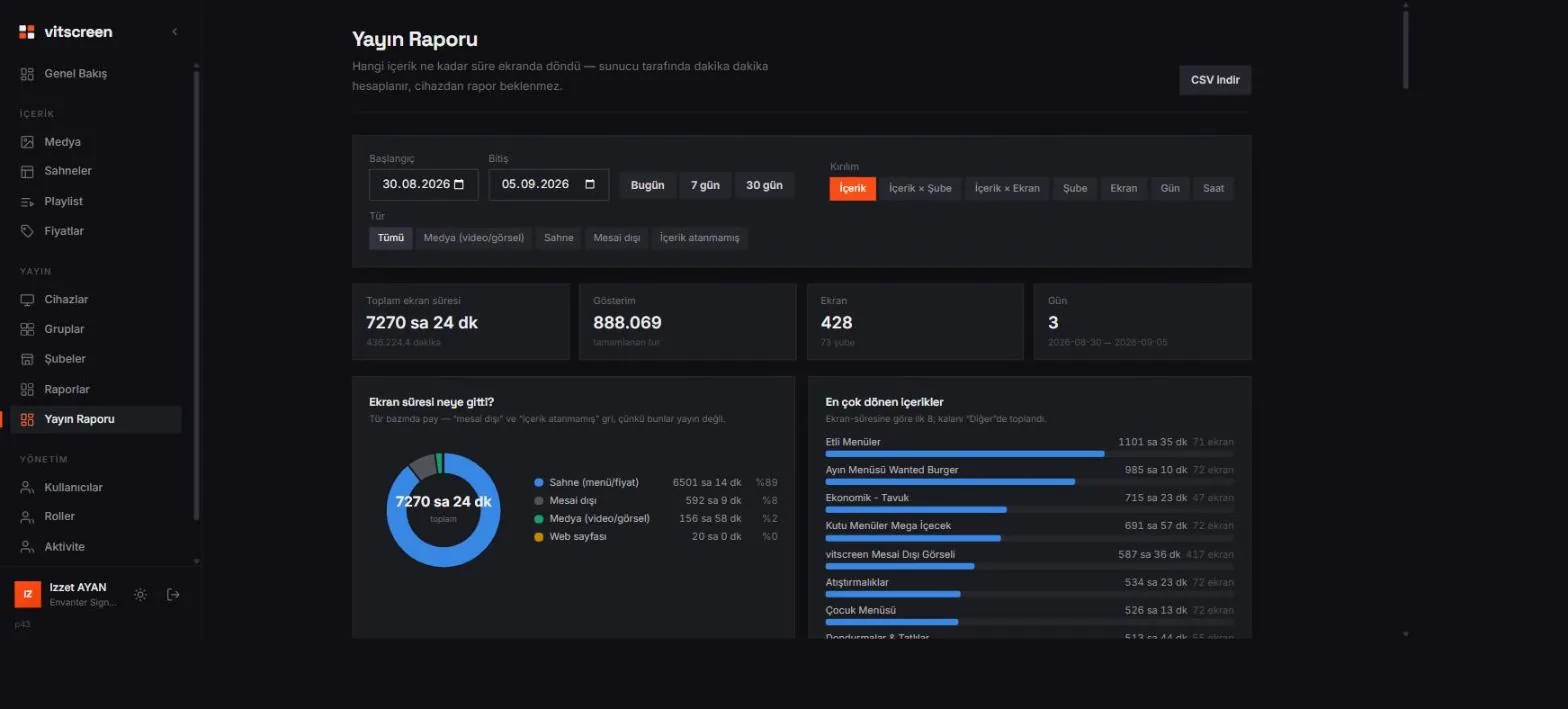
Side-by-side screens, one seamless picture
Screens reference a shared server clock, so content starts and loops at exactly the same moment across the whole wall. Span a video across the wall or give each screen its own content.
- Perfectly synchronized start and loop
- Spanning (video wall) or per-screen mode
- Apply playlists to groups in bulk
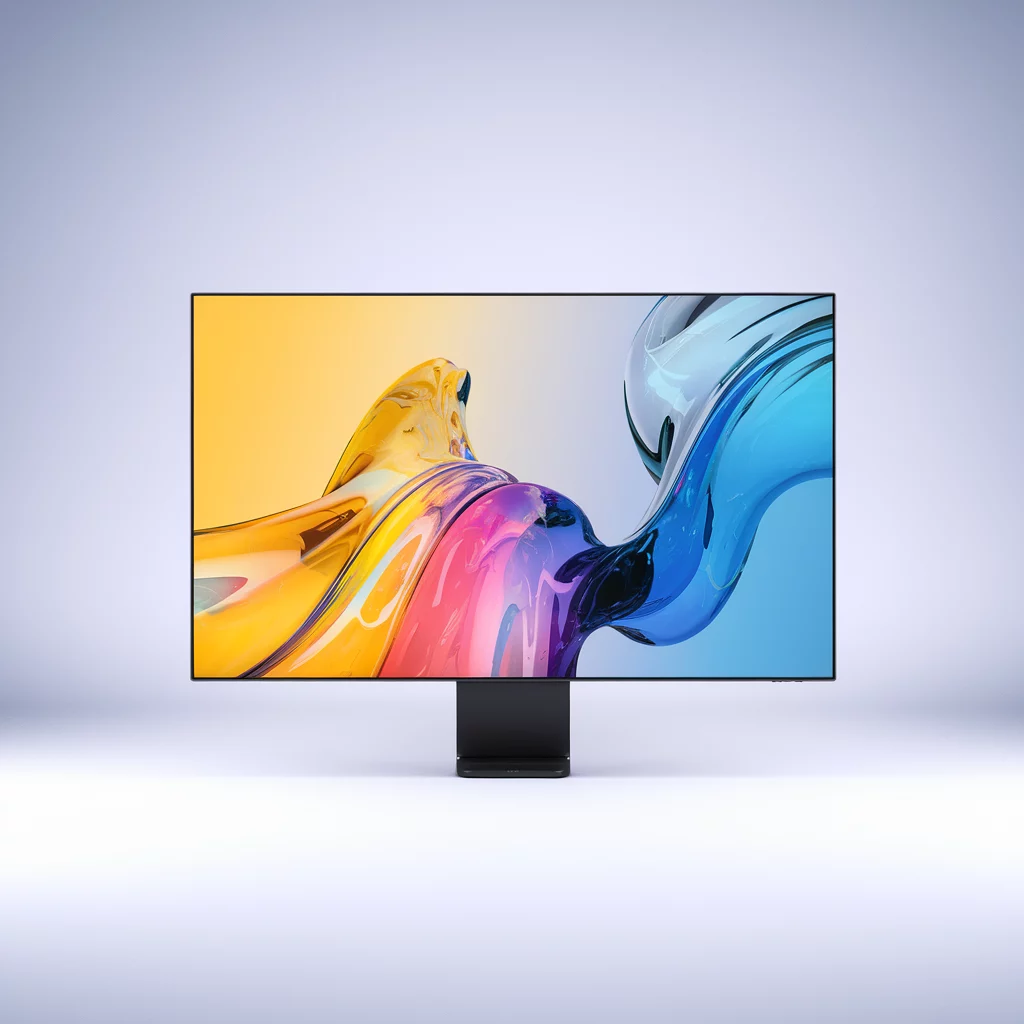
Group mode · 3×2 wall
Spanning
Video wall: one piece of content spans the grid (rows × columns); bezels crop the picture, the frame never drifts.
In the panel: Groups → group → step → Mode. Transitions land on the same frame on every screen.
Auto tour · click a mode
Change a price once, update every store
With store-based dynamic pricing, digital menu boards are always up to date. Change a product's price in the panel and the right screens reflect it within seconds.
- Price mapping by store code
- Can be fed from POS / external JSON
- Full control over color, font and size
Even when the connection drops, the screen stays on
Content is downloaded to the device and plays locally. Playback continues even if the internet or the server goes down; once the connection returns, everything syncs automatically.
- Content is cached on the device
- Automatic reconnection
- Minimal server load
How it works
From setup to live in minutes
Connect the screen
Create the device in the panel, enter the 6-digit code shown by the app on the TV — it pairs within seconds. No extra player box.
Design the content
Build scenes with drag and drop, add menus and prices, prepare playlists. Work in draft, publish when ready.
Publish & manage
Assign to groups, play in sync, monitor remotely. Screens update themselves when content changes and play locally if the connection drops.
Start managing your screens from the cloud today
Create your account, install the app on the TV, enter the code on screen. Go live the same day.
Need an enterprise rollout, store migration or custom integration?