User guide
The whole panel, in one sitting
For every section in the left menu: what it is for, what each button does and tips that work in the field. Installing on the TV is a separate page; this one is about managing a connected screen.
How it works
Every publish goes through the same four stops
- 01
Media
Upload images and videos. Videos are converted to a TV-compatible format automatically.
- 02
Scene
The screen's design: place media, a playlist or a widget in each zone.
- 03
Device / Group
A device card for a single screen, a group for screens that work together.
- 04
Publish
Save is a draft; Publish goes live and asks for a verification code.
Sign in
Account and sign-in
On the sign-up form, enter your company name, your name, email and password and click Create account; no card details are asked. The trial is 15 days and 5 screens, with all features enabled. The bar at the top of the panel shows the days left and the screens in use.
On first sign-in, two-step verification is mandatory: install Google or Microsoft Authenticator on your phone, scan the QR code shown in the panel, enter the 6-digit code and click Verify and enable. From then on, this code is asked after your password on every sign-in.
Publish › Devices
Devices: connect and manage screens
Click + Device, name the screen and click Create and get pairing code. A 6-digit code appears on the card; enter it in the vitscreen app on the TV and the screen goes online within seconds. For the TV side, see the setup guide.
- Assign content
- Give this screen a scene, a playlist or a web page. It goes live, so it asks for a verification code.
- Refresh content
- Tells the TV to "fetch your content again"; the first thing to try when you think something is not showing on screen.
- Screen off / on
- Turns the TV panel off or on remotely; the device stays online.
- Restart
- Restarts the app on the TV.
- Edit
- Assign a store and store code; the store list comes from the Stores page.
- Unpair
- Detaches the TV from this record and generates a new code. For replacing a TV or when the wrong screen got connected.
The list is grouped by store; the search box matches device, store and store code. With Bulk business hours you pick stores and set the opening hours and days: outside business hours the screen stays blank, the TV turns on 20 minutes before opening and off 10 minutes after closing. Leave it empty and the screen stays on 24/7. Bulk preview shows what is on every screen of the selected store right now in a single grid; Export to Excel downloads the inventory.
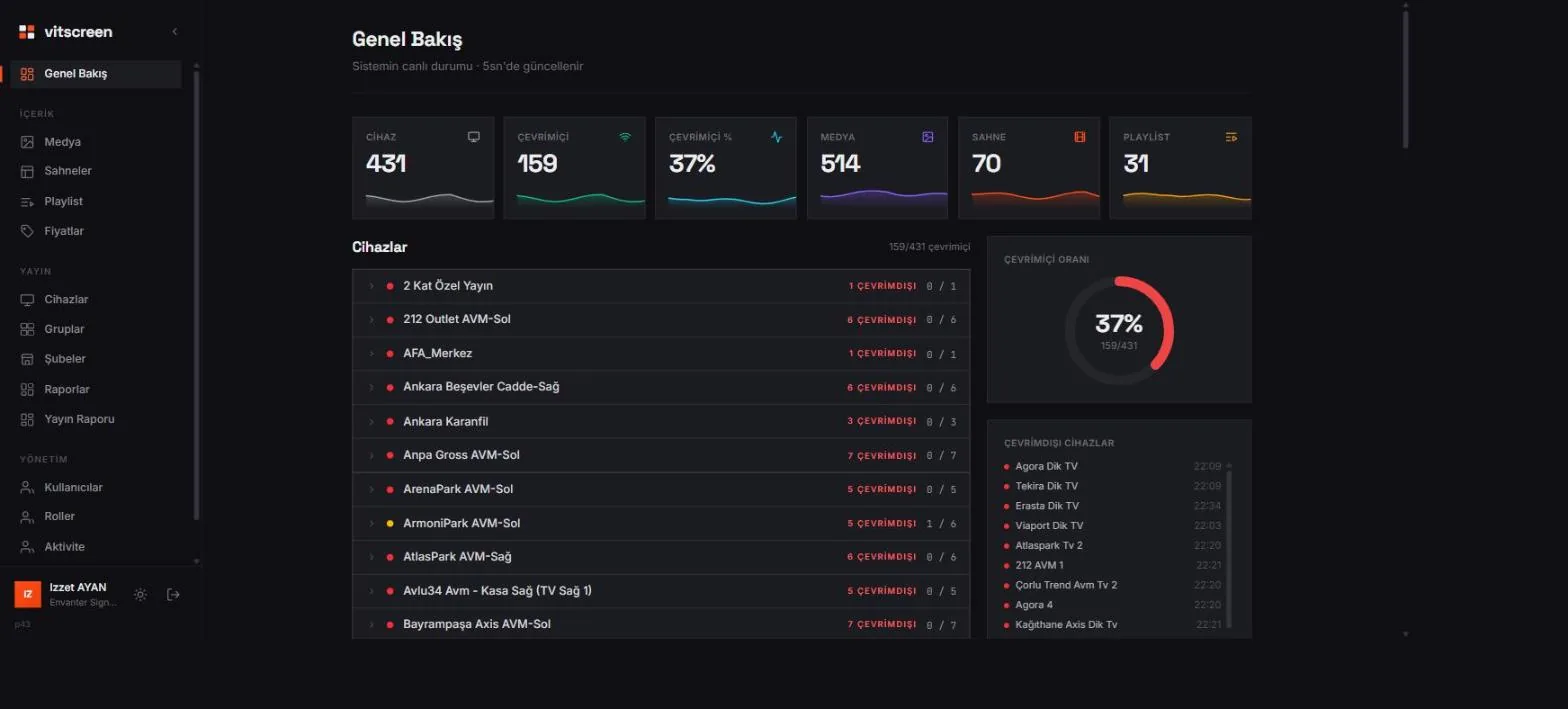
Content › Media
Media: image and video library
+ Upload file uploads several files at once; you name them before uploading. Videos are converted to TV-compatible H.264 in the background; videos under 60 MB are downloaded to the device (they keep playing if the internet drops), larger ones are streamed.
- New folder
- Organize the library into folders; drag and drop files, go back to the root with "All" at the top.
- Rename
- The file name shows up in scenes and reports; give it a clear name ("campaign-september-portrait").
- Download status
- Shows which screens have downloaded this file; the first answer to "it is not showing on screen".
- TV-compatible
- Re-processes a video; use this if an old file stutters on the TV.
- WebP
- Converts a short video into an animated image; for a lightweight loop inside a scene.
Content › Scenes
Scenes: the screen's design
+ Scene → name → Create takes you to the editor. Add a Zone to the canvas and give each zone one of three content types: Media, Playlist or Widget. Widget types: Text, Price (single product), Menu table, Clock, Weather, Web page, RSS.
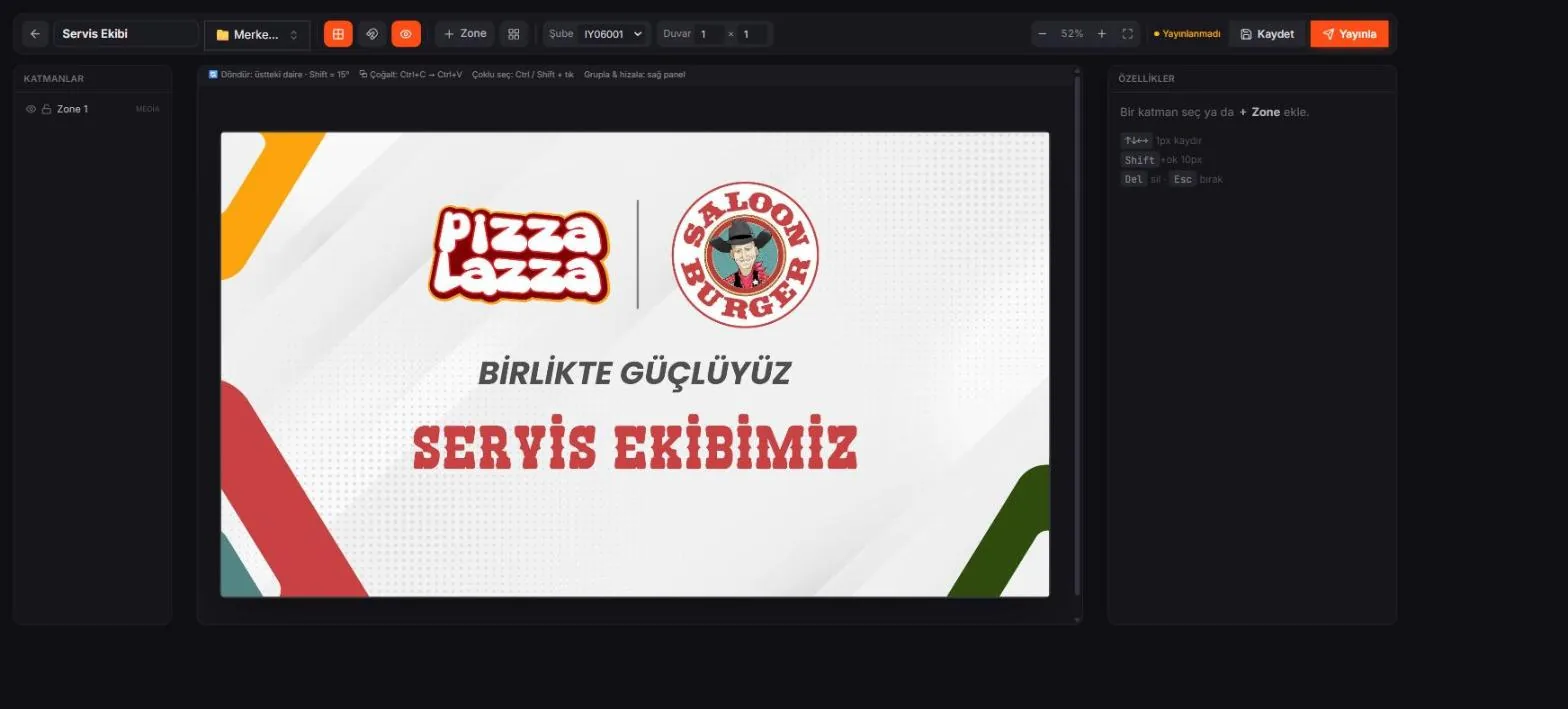
The Properties panel on the right manages the selected zone's layer, content, position and size in pixels, alignment and style. You can select several zones and group them, bring them forward or send them back, and duplicate them. The warning counter at the top lists missing settings (e.g. an empty product key in a price widget). Pick a store to preview the scene with that store's real prices.
Content › Playlist
Playlist: set up a multi-screen flow once
A playlist is a reusable template that drives several screens together. Open one with + Playlist; choose the screen layout (how many screens, which orientation), add steps and, for each step, set the duration, repeat, mode and screen order from the Content tab.
The Schedule tab defines day and time slots (breakfast 06:00–11:00, evening 17:00–closing and so on); the week strip in the folder view highlights uncovered days in red. Add stores under Stores using this wall and the playlist is linked to those stores' groups; Full-screen preview plays the flow step by step.
Publish › Groups
Groups: run screens together
A group is a set of screens that run at the same time with the same content. + Group → pick a store, add screens, set their order and orientation. Each step has a Mode:
- Mirror
- Mirror: all screens show the same content on the same frame.
- Individual
- Each screen gets its own content; transitions are still in sync.
- Spanning
- Video wall: a single piece of content spans the grid (rows × columns).
- Mixed
- Some screens spanning, some individual; like a menu board plus a campaign wall.
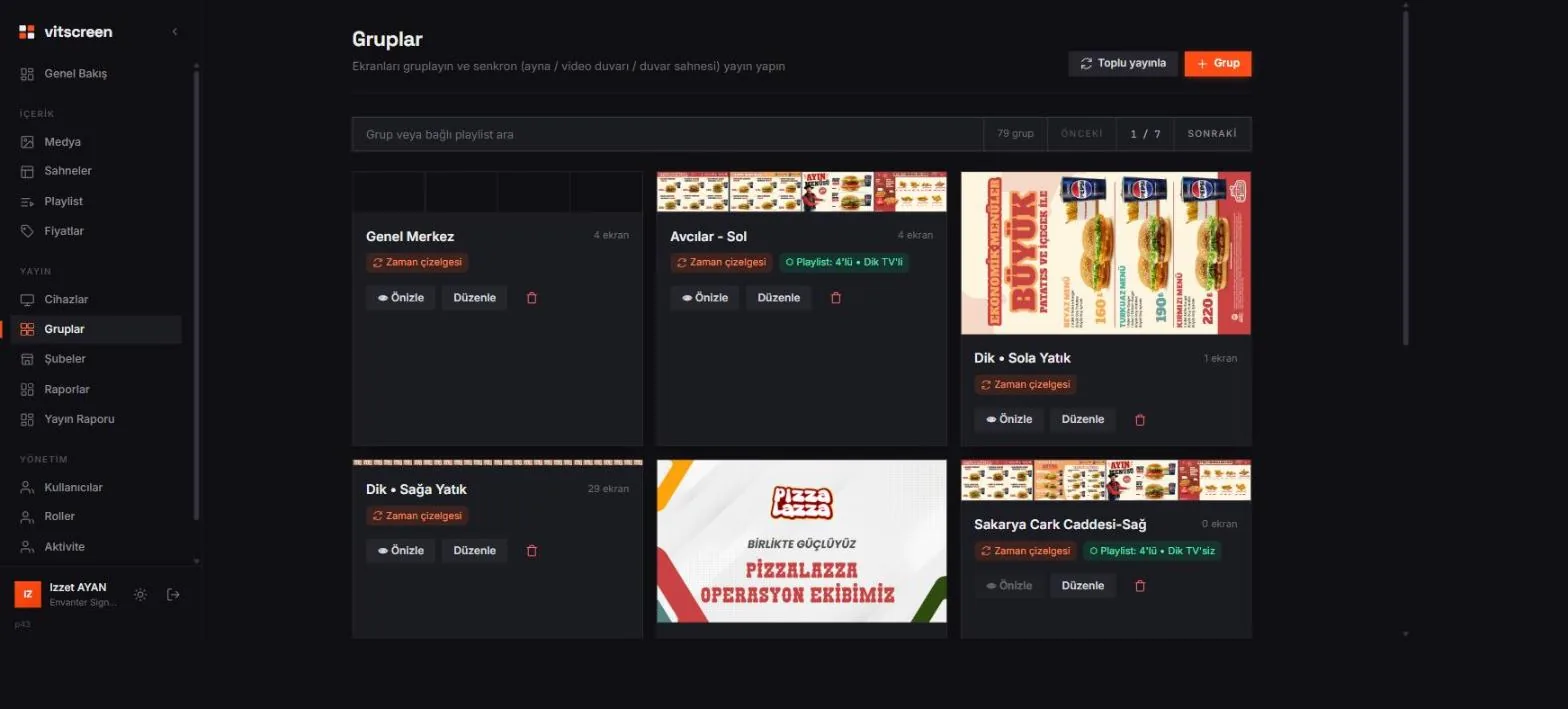
The Schedule tab switches the scene or media by day/time range. Bulk publish in the group list takes several groups live with a single verification; Preview shows the group's screens as they are right now.
Content › Prices
Prices: store-based menu prices
Stores on the left, that store's product prices on the right. Change them and click Save (N changes); the price and menu widgets in scenes update on the relevant screens instantly (a verification code is asked). Revert discards the changes you have not saved.
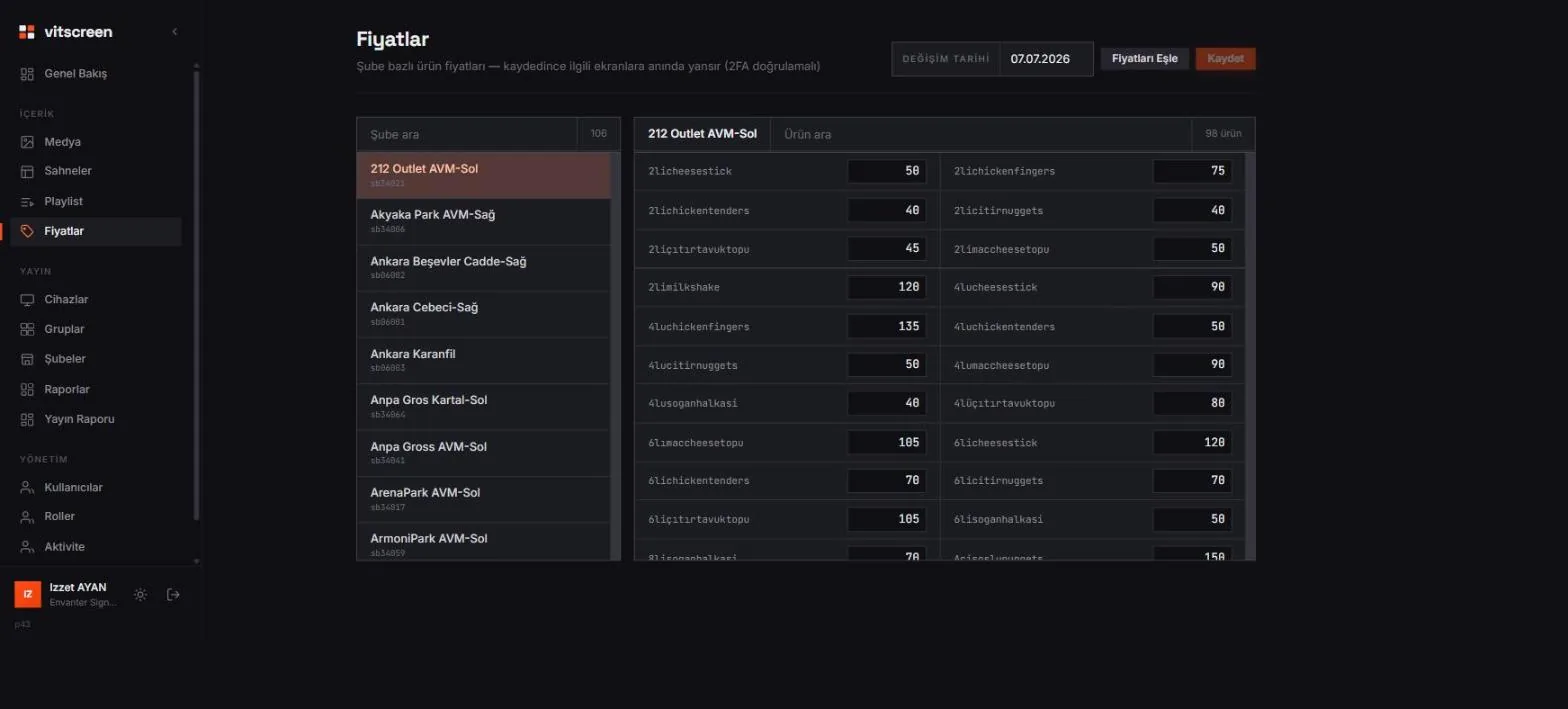
The Change date field feeds the "Price change date" label in scenes. Sync prices pulls prices from the POS (360restoran) and previews the difference; Discard or apply. For live prices, the REST API and details are on the dynamic pricing page.
Publish › Stores
Stores and Regions
The Stores tab holds the store name, store code and the playlist assigned to the store. On the same card you enter offline alert emails (type an email, press Enter): if a screen goes down during business hours, the store manager gets an email. The Regions tab links stores to a regional manager; the manager is also notified of every outage in the region.
Publish › Reports
Reports and Play Report
Reports is the inventory of your fleet: version distribution, store summary, hardware, offline devices, off-target versions and those needing attention; each section downloads as CSV, Download inventory (CSV) takes all of it.
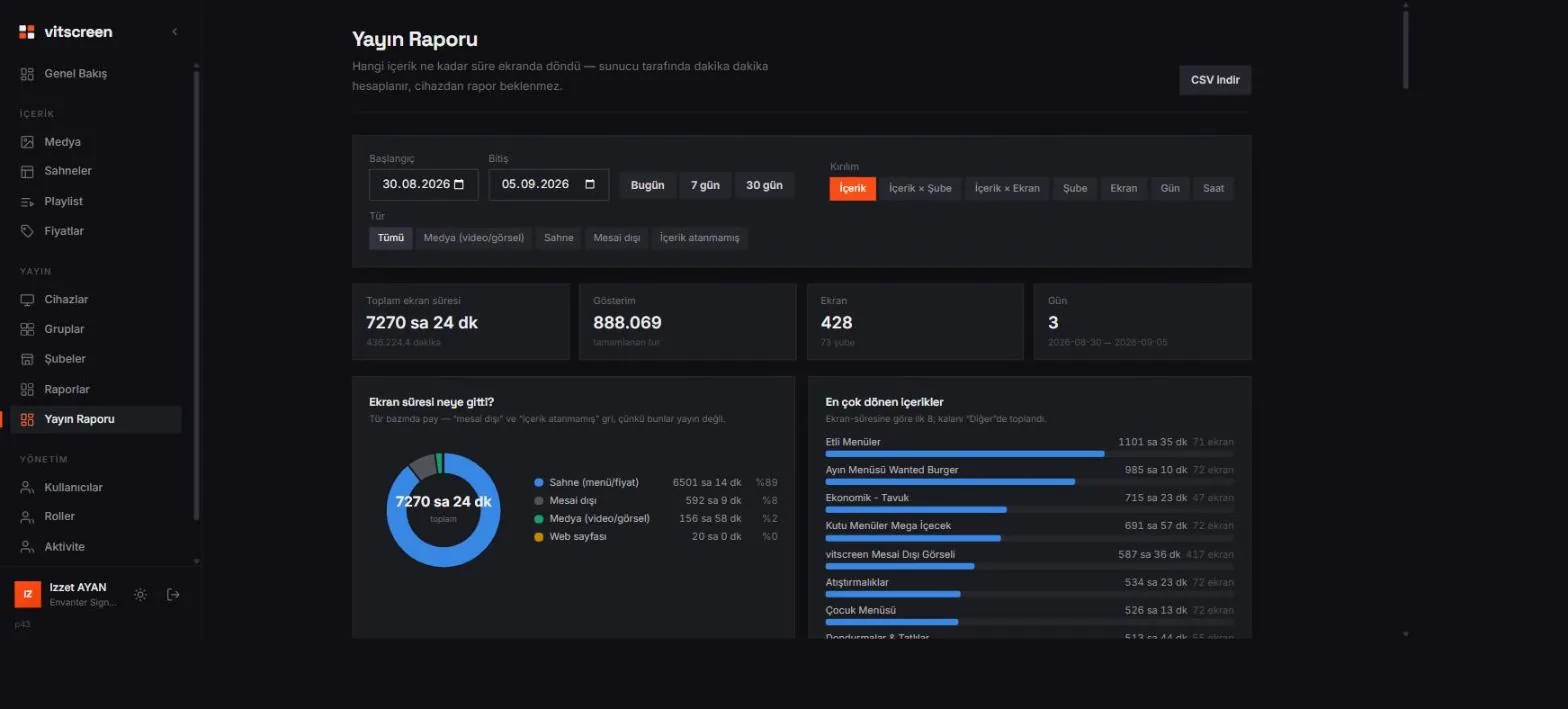
Play Report counts, on the server side, how long each piece of content was shown on each screen. Date range (Today / 7 days / 30 days), Breakdown (Content, Content × Store, Content × Screen, Store) and Type (Media, Scene, Off-hours) filters; the summary chips give total screen time, impressions, screen and day counts. Download CSV turns it into an advertiser or franchise report.
Admin
Users, roles and security
- Users
- + User asks for name, email, password and role; change the role from the row, set a new password with Password, and reset verification with 2FA for a user who lost their phone.
- Roles
- + Role creates a custom role: None / View / Edit for each module. Go live is a separate permission; the person who designs and the person who publishes can be different.
- Activity
- Who did what and when: create, update, delete, publish, command, sign-in and failed sign-in attempts — the last 300 records.
- Mail Settings
- General alert addresses independent of store; they get an email for every device that goes offline during business hours.
Glossary
- Device
- A screen record in the panel. The TV connects to this record with a 6-digit pairing code; the card shows online status, version and last seen time.
- Pairing code
- The 6 digits generated when a device is created. It is unique to the device and valid until a TV connects; "Unpair" generates a new code.
- Scene
- The screen's layered design. It is made of zones; each zone holds media, a playlist or a widget.
- Widget
- A zone inside a scene that shows live data: text, a single product price, menu table, clock, weather, web page, RSS.
- Playlist
- A reusable multi-screen flow: steps, durations, screen order and weekly schedule. Set up once, applied to stores.
- Group
- Screens that work together. They show the same content at the same time (mirror) or form a video wall (spanning).
- Store / store code
- The location a device belongs to and its short code. Prices, offline alerts and reports are split by store.
- Save / Publish
- Save keeps a draft; screens keep showing the previous version. Publish goes live and asks for Go-live verification.
- Go-live verification
- The 6-digit authenticator code (2FA) required for any action that changes what is on screen. The code is valid for about 90 seconds.
If you could not find the answer here, check the FAQ or write to us; include which page of the panel you are on and the message you see.
Create your account and live the guide in the panel
15 days, 5 screens, free. On first launch, the panel also walks you through the same steps as a tour.
Need an enterprise rollout, store migration or custom integration?
Panel address: https://vitscreen.com/panel